
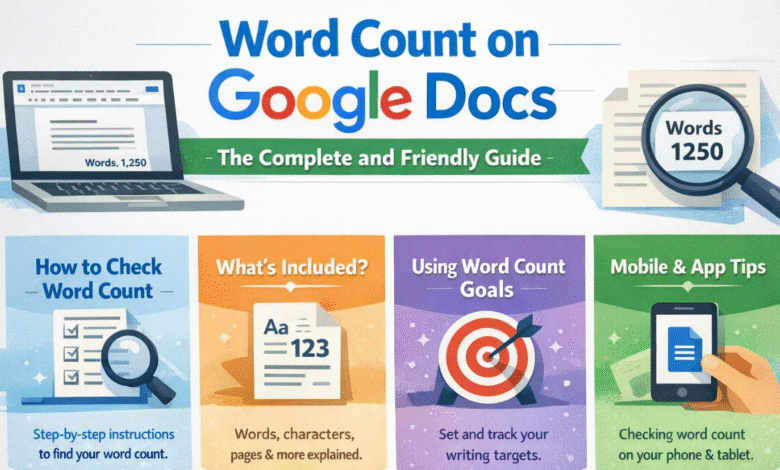
Word Count on Google Docs – The Complete and Friendly Guide
Word Count.When you are writing an essay, report, blog post, or even a short story, one thing always matters: word count on Google Docs. Whether your teacher says “Write at least 500 words,” or your boss asks for a 1,200-word report, knowing how to check and manage your word count on Google Docs is very important.
The good news? It’s easy, fast, and very reliable. In this detailed guide, you will learn everything about word count on Google Docs how to find it, how to use it wisely, and how to make it work for you. So, let’s dive right in and explore this helpful writing tool step by step.
What Is Word Count on Google Docs?
Google Docs is a free online word processor. It helps people write documents, essays, letters, reports, and much more.
Word count on Google Docs is a feature that tells you:
- How many words are in your document
- How many pages you have
- The number of characters
- The number of characters without spaces
In simple terms, it helps you measure your writing.
Think of it like a scale for words. Just like a scale measures weight, word count measures how much you have written.
Why Word Count on Google Docs Is So Important
You might wonder, “Why does word count even matter?” Well, it matters more than you think.
Here are some key reasons:
For Students
- Teachers often give word limits.
- Essays must not be too short or too long.
- Assignments need to follow instructions.
For Writers and Bloggers
- Articles often need specific lengths.
- SEO writing depends on word count.
- Publishers set minimum and maximum limits.
For Professionals
- Reports must be clear and within limits.
- Business proposals often have size rules.
- Legal documents require precision.
In short, word count on Google Docs helps you stay on track. It keeps your writing clear, organized, and professional.
How to Check Word Count on Google Docs (Desktop Version)
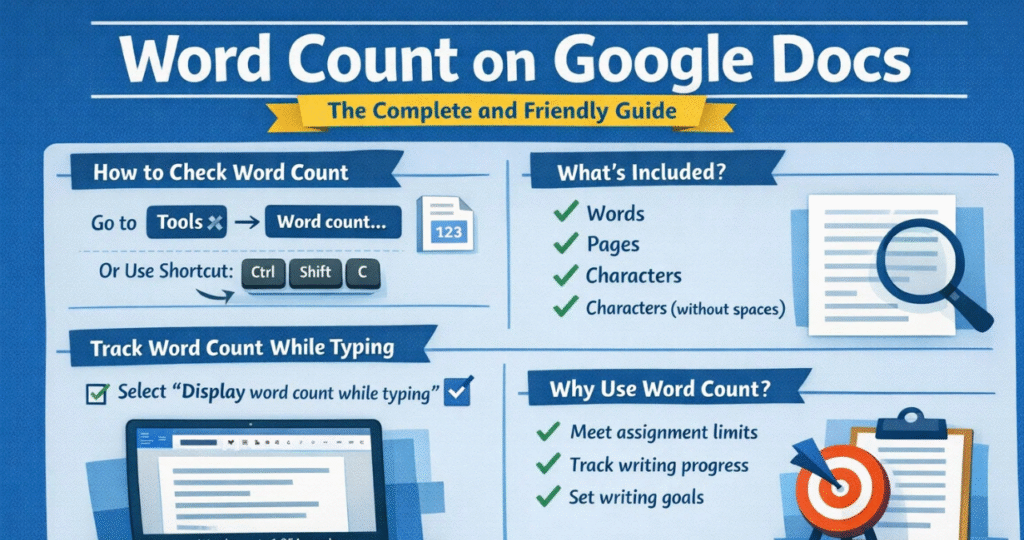
Checking word count on Google Docs is very simple. Follow these steps:
Using the Menu Bar
- Open your document in Google Docs.
- Click on Tools in the top menu.
- Click on Word count.
- A small box will appear showing:
- Words
- Pages
- Characters
- Characters (excluding spaces)
And voilà! You have your numbers.
Keyboard Shortcut
If you like shortcuts (who doesn’t?), here’s a faster way:
- On Windows: Press Ctrl + Shift + C
- On Mac: Press Command + Shift + C
Within seconds, the word count window pops up.
Easy as pie!
How to Check Word Count on Google Docs (Mobile App)
Many people write on their phones or tablets. Thankfully, you can check word count on Google Docs on mobile too.
Steps for Android and iPhone
- Open the Google Docs app.
- Open your document.
- Tap the three dots (⋮) in the top-right corner.
- Tap Word count.
- Your word and character count will appear.
It may not be as detailed as the desktop version, but it works well when you’re on the go.
How to Show Live Word Count on Google Docs While Typing
Here’s a feature many people love: live word count.
Instead of opening the word count box again and again, you can make it show while you type.
How to Turn On Live Word Count
- Click on Tools
- Click on Word count
- Check the box that says:
- “Display word count while typing”
- Click OK
Now, you will see the word count at the bottom-left corner of your document.
This is very helpful when you are trying to reach a target, like 1,000 words. You can see your progress in real time. Pretty neat, right?
What Does Word Count on Google Docs Actually Measure?
The word count box shows different types of information. Let’s understand them clearly.
| Measurement Type | What It Means | Why It Matters |
|---|---|---|
| Words | Total number of words written | Used for essays and articles |
| Pages | Number of pages in document | Important for printed work |
| Characters | Total letters, numbers, symbols | Useful for social media limits |
| Characters (no spaces) | Same as above but no spaces counted | Needed for strict limits |
Understanding these details helps you follow instructions correctly.
How to Check Word Count for Selected Text Only
Sometimes, you don’t want the word count of the whole document. You only want to check one paragraph or one section.
Here’s how:
- Highlight the text you want to measure.
- Click Tools.
- Click Word count.
Google Docs will now show the word count for just the selected text.
This is especially helpful when:
- Editing specific sections
- Checking introduction length
- Adjusting paragraph size
It gives you full control over your writing.
Common Word Count Rules in Schools and Workplaces
Different places have different word count rules. Let’s look at some common examples:
Schools
- Short essay: 300–500 words
- Standard essay: 800–1,500 words
- Research paper: 2,000+ words
Blogs and Online Articles
- Basic blog post: 600–800 words
- SEO article: 1,000–2,000 words
- Detailed guide: 2,000+ words
Social Media
- Twitter/X: Character limit
- Instagram captions: Character-focused
- LinkedIn posts: Word-focused
Using word count on Google Docs helps you adjust your content to match these requirements perfectly.
Tips to Increase Word Count on Google Docs Naturally
Sometimes your writing is too short. Don’t panic! Instead of adding random words, try these smart strategies:
Add Examples
Examples make your writing clearer and longer.
Explain Ideas in Detail
Instead of writing:
Google Docs is useful.
Write:
Google Docs is useful because it allows users to write, edit, and share documents online from any device.
Use Transitional Phrases
- In addition
- On the other hand
- For example
- As a result
These make writing smoother and increase word count naturally.
Add Supporting Points
Bullet points, short explanations, and mini summaries help expand content without sounding forced.
Remember, quality comes first. Never add fluff just to increase numbers.
Tips to Reduce Word Count on Google Docs
What if your document is too long? It happens!
Here’s how to trim it down:
- Remove repeated ideas
- Delete unnecessary adjectives
- Combine short sentences
- Avoid wordy phrases
For example:
Instead of:
Due to the fact that
Write:
Because
Small changes can make a big difference.
How Word Count on Google Docs Helps With SEO Writing
Search Engine Optimization (SEO) writing often requires longer content. Many high-ranking articles are 1,500 words or more.
When writing for websites:
- Longer articles often rank better.
- Detailed guides attract more readers.
- More words allow better explanation.
Using word count on Google Docs, writers can:
- Track article length
- Meet client requirements
- Maintain consistency
It’s like having a writing assistant by your side.
Comparing Word Count on Google Docs with Other Tools
Let’s briefly compare Google Docs with another popular tool:
Microsoft Word
| Feature | Google Docs | Microsoft Word |
|---|---|---|
| Online Access | Yes | Limited (needs cloud setup) |
| Live Word Count | Yes | Yes |
| Free to Use | Yes | Usually Paid |
| Collaboration | Excellent | Good |
Both tools are powerful. However, Google Docs is especially popular because it’s free and works online.
Common Problems with Word Count on Google Docs
Although rare, users sometimes face small issues:
Word Count Not Updating
Solution:
- Refresh the page.
- Close and reopen the document.
Wrong Count?
Sometimes formatting, special symbols, or pasted content may affect counting. Cleaning formatting usually fixes it.
Internet Issues
Since Google Docs works online, slow internet may cause delay. Make sure your connection is stable.
Most problems are easy to fix — no need to stress.
Best Practices for Managing Word Count on Google Docs
To become a smart writer, follow these best practices:
- Check word count before submitting work.
- Use live word count for long projects.
- Keep track of section lengths.
- Stay within required limits.
- Focus on clarity, not just numbers.
Writing isn’t just about reaching a word target. It’s about communicating clearly and effectively.
Final Thoughts on Word Count on Google Docs
In today’s digital world, writing is everywhere school, work, business, blogging, and beyond. Knowing how to use word count on Google Docs gives you control, confidence, and clarity.
It helps you:
- Follow instructions
- Improve writing discipline
- Meet professional standards
- Track your progress
At the end of the day, great writing is not just about how many words you use it’s about how well you use them. Still, having the right tools makes all the difference.
And honestly, once you master word count on Google Docs, you’ll wonder how you ever wrote without it.
So go ahead open your document, start typing, and let word count on Google Docs guide you toward better, smarter, and more confident writing.
You may also read
Recharge TikTok Coins: A Complete Guide to Recharge TikTok Coins Safely and Easily